Remote Control App For All TVs
HOOHUAProductivity
4.4307.00 Reviews
- Version
- 1.4.3
- Installs
- 1.00M
- Age Rating
- Everyone
Screenshots
Our Review of Remote Control App For All TVs
 Analysis by Appyee
At home, a missing remote usually turns into a small group project: someone checks the sofa, someone else looks under a cushion, and the TV stays on the wrong input while everyone waits. I like the idea of keeping a phone-based backup for that moment, especially in a shared living room where remotes tend to wander. Remote Control App For All TVs is a free productivity app from HOOHUA, and its appeal is simple: it puts common TV controls on a device many of us already keep close by.
A shared screen, without the remote hunt
Picture a weekday evening: one person has finished watching, another wants to switch to a console, and the usual remote is nowhere in sight. A phone remote can make that handoff less frustrating by letting someone adjust the volume or change the input from the couch. That is the most convincing use for this kind of app in my view—not replacing every household remote, but giving the household a practical fallback.
It can also help when the TV is in a room where people take turns using it. Instead of passing around the physical remote, a person who already has the app open can make a quick adjustment. The trade-off is that a shared phone is not the same as a shared remote: whoever has access to that phone is the one who can use it, so a household should agree on when it is okay to pick up someone else’s device.
What to expect before connecting
The setup experience described in the app’s review is straightforward, but I would still approach the first connection as a small compatibility check rather than assume every television will respond identically. Keep the TV powered on, follow the pairing steps shown in the app, and try a basic command before relying on it for a whole evening. If the first attempt does not work, checking that the phone and TV are on the intended connection or choosing the right TV option in the setup flow is a more sensible first move than repeatedly tapping buttons.
There is an important practical distinction between remote apps that use a phone’s infrared hardware and those that communicate over Wi-Fi. The app is described as supporting both approaches, but the available route can depend on the phone and television. If your phone does not have an IR blaster, the Wi-Fi option may be the relevant path; if the TV is not reachable through the setup process, a dedicated physical remote or the TV maker’s own app may be a better fallback.
Making it work for a household
For shared use, I would treat the app as a convenience rather than assume it provides household profiles or permission controls. A useful routine is to keep the physical remote in one predictable place and use the phone app when it is missing or when someone already has a phone in hand. That avoids a familiar problem with phone controls: the app is helpful until the phone is locked, out of reach, or being used for something else.
It is also worth deciding who handles setup. One person can connect the app and test basic commands, then show other household members where the volume and input controls are. That small bit of coordination matters more than it sounds: it reduces the chance that someone changes settings while trying to find a channel, and it gives guests a simple explanation if they need to use the TV.
Age, trust, and everyday boundaries
The app has an Everyone content rating, which makes its age context broad, but that does not mean every household needs to share one person’s phone freely. I would keep ordinary device boundaries in place, particularly with younger children: show them how to use the TV controls if appropriate, but do not hand over an unlocked phone just because it has a remote app on it. The app is a tool for controlling the television, not a substitute for family rules about screen time or device access.
For a home with several adults, the main question is convenience. If each person wants independent access, they can decide whether installing a remote app on more than one phone suits their routine; if only one person sets it up, everyone else may still need to ask for help when that phone is unavailable. I would not choose this app on the assumption that it manages accounts or coordinates viewing—it is most useful when the household handles those arrangements itself.
Getting Started with the App
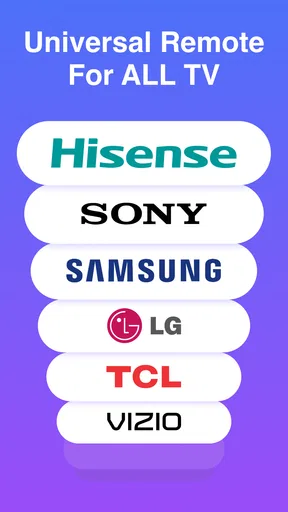
First things first, downloading the app is a breeze. It’s available on both Android and iOS, so you’re covered no matter what device you’re using. Once you’ve got it installed, the setup is super straightforward. The app guides you through a step-by-step process to sync it with your TV. It supports a wide range of TV brands, from Samsung to LG, and everything in between. Honestly, it took me less than five minutes to get it all set up.
Features You’ll Love
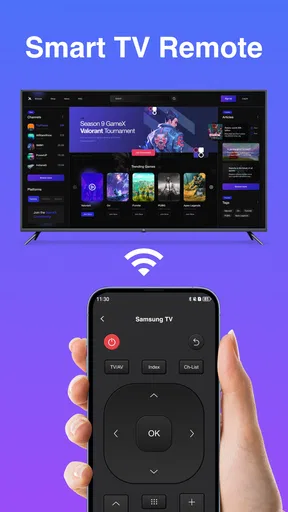
This app isn’t just about changing channels. It’s packed with features that make it a must-have. For starters, you can adjust the volume, switch inputs, and even access streaming apps directly from your phone. The interface is user-friendly, with large buttons and clear labels, so you won’t have to squint at your screen trying to figure out what’s what.
One of my favorite features is the ability to create personalized shortcuts. If you have specific channels or settings you use frequently, you can set them up for quick access. It’s like having a personalized remote that’s tailored just for you. Plus, with the app’s sleek and modern design, it feels like you’re using a high-end piece of tech rather than a simple remote control.
Performance and Reliability
Now, let’s talk about performance. During my time with the Remote Control App For All TVs, I found it incredibly reliable. The connection between my phone and the TV was seamless, and there was no noticeable delay when executing commands. The app uses both IR and Wi-Fi connections, so even if your phone doesn’t have an IR blaster, you can still control your TV over a Wi-Fi network.
I tested it with various TV models, and it worked like a charm each time. The app updates frequently to support new models and fix any bugs, which is a major plus in my book.
Shortcuts, settings, and the useful limits
Personalized shortcuts are most valuable when they reduce a repeated sequence, not when they simply duplicate a button already easy to reach. I would set up only the actions I use often—perhaps a preferred channel or a familiar viewing setup—and keep less common controls in the normal layout. That keeps the screen useful instead of turning it into another menu to manage. For a household, shortcuts should reflect shared habits rather than one person’s niche preferences if other people will use the same phone.
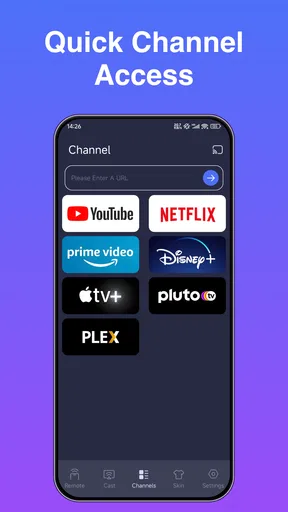
Quick access to streaming apps can make a phone remote feel more convenient than a basic physical handset, but it does not necessarily replace the streaming service’s own interface. If a particular app needs a sign-in, search, or text entry, using the TV’s own controls or a dedicated companion app may be less awkward. I see the remote app as best for everyday commands—power, volume, input, and familiar destinations—rather than a guarantee that every on-screen task becomes easier.
There is also a small but real trade-off in relying on a phone: a low battery, a notification interruption, or simply having the phone in another room can make the old-fashioned remote the faster choice. I would keep the physical remote accessible instead of putting it away permanently. The app earns its place as a backup and a handy alternative, not as a reason to make the household dependent on one person’s device.
How it compares with other remote options
Compared with a standard TV remote, a phone app is easier to keep nearby and can offer a more flexible screen layout, especially when shortcuts are useful. The physical remote still wins for quick access when a phone is locked, and it does not compete for battery or attention with calls and other apps. For a TV from one manufacturer, that maker’s own remote app may be the more natural choice if you want controls tailored to that television; a universal app is more appealing when you want one place to try controlling different TVs.
A universal remote accessory is another option for people who want a dedicated controller without depending on a smartphone. That can be preferable in a busy household where guests or children need a straightforward device they can pick up without borrowing someone’s phone. I would choose the HOOHUA app when the phone is already at hand and broad, everyday control is the goal; I would favor a physical or manufacturer-specific alternative when reliability for one particular TV matters more than convenience across devices.
Who will get the most from it
This is a sensible fit for someone who often misplaces the remote, shares a TV, or wants to make routine input and volume changes from a phone. It is also useful as a backup to try before buying another controller, provided the television and phone can complete the connection process. The app is free to download, has an average rating of 4.5 from around 2.8 thousand ratings, and has passed half a million installs, so it has attracted a substantial audience without that popularity guaranteeing a perfect match for every setup.
I would be more cautious if you need a guaranteed replacement for a specific TV remote, want all household members to have separate access without coordinating phones, or mainly need advanced text entry and streaming navigation. Compatibility and the connection method matter more than the universal label. Try the basic controls first, and keep another way to operate the television until you know the app works reliably in your room.
Cost, version, and the decision at home
The app is free, though in-app purchases range from $3.99 to $94.99 per item, so I would check the purchase details before choosing anything beyond basic use. Its current version is 1.4.3, and it requires Android 10 or later. Those are practical checks to make before installing, especially if you plan to use an older phone or want to avoid unexpected spending. The broad age rating is Everyone, but the usual household rules for devices and purchases still apply.
For me, the strongest case is a shared living room where people want a convenient backup and can agree on who sets it up and when the phone is available. HOOHUA’s productivity app keeps the idea easy to understand, and its shortcuts may save steps for repeated habits. Its limitations are equally clear: it relies on a compatible connection, it cannot make a phone available when its owner is using it, and it should not be mistaken for a household account or access-management system.
The Bottom Line
In conclusion, if you’re looking for a versatile and reliable way to control your TV, you should definitely give the Remote Control App For All TVs a try. It’s packed with features, easy to use, and works with a wide range of TV models. Whether you’ve lost your remote or you just want to streamline your living room setup, this app is worth checking out.
So, next time you’re frantically searching for the remote, remember that your phone might be just the solution you need. With this app, you’ll be changing channels and adjusting the volume like a pro, all from the comfort of your smartphone.
Verdict
Strengths of Remote Control App For All TVs
- Supports a wide range of TV brands.
- Easy setup with intuitive interface.
- No additional hardware required.
- Smooth and responsive controls.
- Customizable remote layout options.
Limitations of Remote Control App For All TVs
- Limited functionality on older TV models.
- Ads can be frequent and disruptive.
- Requires stable Wi-Fi connection.
- May not work with all smart TVs.
- In-app purchases for premium features.
Similar Picks in This Category
View All
Google Calendar
Google LLC4.6

Google Drive
Google LLC4.3

Google Assistant
Google LLC3.9

Microsoft OneDrive
Microsoft Corporation4.6

Samsung Calendar
Samsung Electronics Co., Ltd.4.1

Microsoft OneNote: Save Notes
Microsoft Corporation4.6
Frequently Asked Questions
Is the Remote Control App compatible with all TV brands?
Yes, the Remote Control App is designed to be compatible with a wide range of TV brands, including popular ones like Samsung, LG, Sony, and Panasonic. However, compatibility may vary depending on the model and age of the TV. It's advisable to check the app's support list for specific models before downloading.
Do I need an internet connection to use the Remote Control App?
An internet connection is not necessary for basic remote control functions if your TV and smartphone are connected to the same Wi-Fi network. However, some advanced features, such as voice control or accessing online content, may require internet access. Ensure that both your TV and phone are on the same network for optimal performance.
How do I set up the Remote Control App with my TV?
Setup is generally straightforward. First, ensure your TV is on the same Wi-Fi network as your smartphone. Open the app and follow the on-screen instructions to pair with your TV. This often involves selecting your TV brand and model, and sometimes entering a pairing code displayed on your TV screen.
What features does the Remote Control App offer?
The app offers various features such as channel navigation, volume control, input switching, and a virtual keyboard for easier search. Some versions also include voice command capabilities and the ability to create custom remote layouts. Additionally, you can often control other smart devices connected to your TV.
Is the Remote Control App free to use?
The app is typically available for free with basic features. However, some advanced functionalities may require in-app purchases or subscriptions. These might include removing ads, accessing premium themes, or unlocking additional control features. Check the app's listing on the app store for detailed pricing information.
